Automations
Set up TikTok workflow automation in fypnow: connect a trigger to the steps fypnow should take, test it with Run now, and turn it on. On every paid plan.
Open Automations in the sidebar. Each automation starts with one trigger and runs the steps connected below it, top to bottom: a trigger plus up to 29 steps. Automations are included on every paid plan.
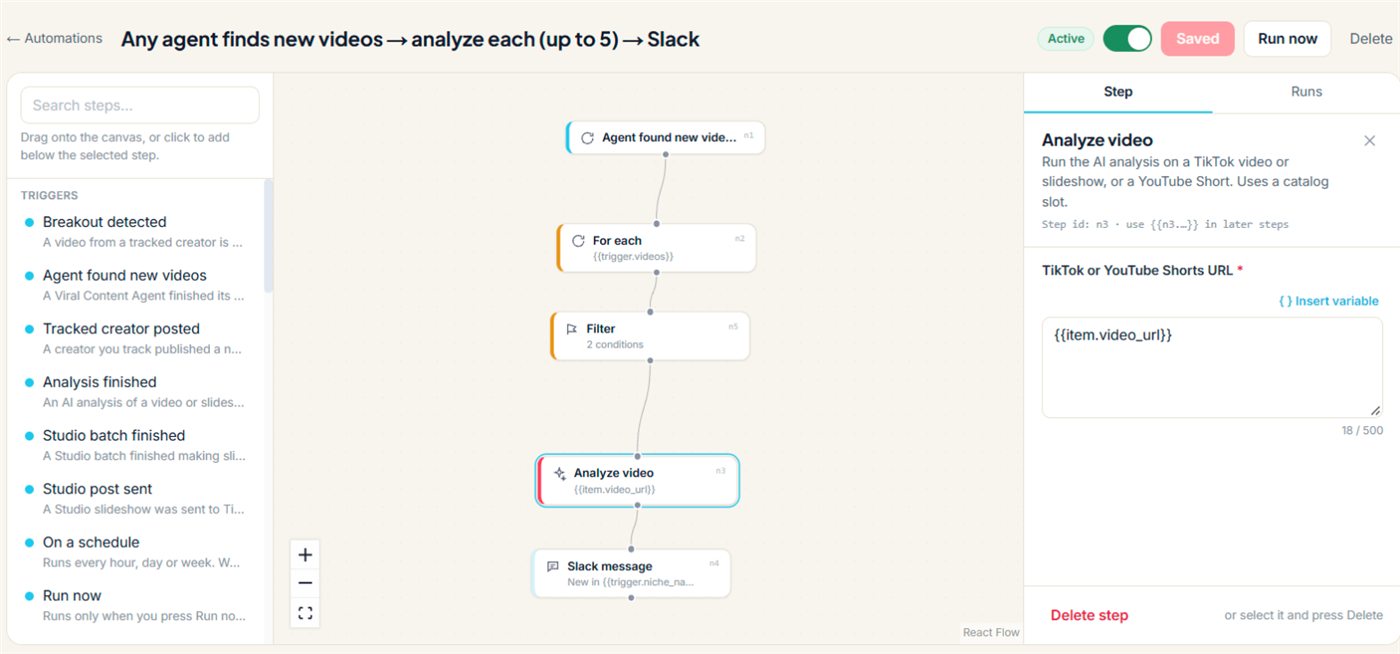
Create one
- Press New automation and pick a template, or Start from scratch.
- Add steps from the list on the left: drag one onto the canvas, or click it to add it below the selected step.
- Click a step to edit its settings. Use Insert variable to use what earlier steps produced, for example
{{trigger.video_url}}or{{n2.hook_type}}. - Press Save, then Run now to test it once. Turn the switch on when it looks right.
Templates
- Breakout from a tracked creator → analyze → script → Slack
- Tracked creator posted → analyze → Library → Discord
- Every Monday 9:00 → growth scorecard → email me
- Breakout (10x or more) → carousel script → Studio → TikTok drafts
- Daily 8:00 → 3 Studio slideshows → TikTok drafts
- Any agent finds new videos → analyze each (up to 5) → Slack
A template opens as a normal automation: pick the Slack channel, niche or TikTok account it asks for, then save it.
Triggers
- Breakout detected: a video from a creator you track gets far more views than usual. Limit it to 5x, 10x or 20x+.
- Agent found new videos, Tracked creator posted, Analysis finished, Studio batch finished and Studio post sent.
- On a schedule: every hour, every day or on chosen days of the week, in your time zone.
- Run now: only when you press it, with an optional topic.
Triggers need no integration. Only the Slack, Discord and webhook steps do.
Steps
- Logic: Filter, Branch (Yes / No), For each (up to 25 items) and Wait (up to 24 hours).
- Data: Search analyzed videos, Find similar videos, Niche videos, Niche stats, Recent breakouts, Creator report, Growth scorecard and Get video analysis.
- Actions: Analyze video, Generate script (video or carousel), Search viral trends, Save to Library and Track creator.
- Studio: Make Studio slideshows, Slideshow from script and Send to TikTok drafts (up to 5 slideshows per step). Slideshows go to the drafts of a TikTok account you connected; nothing is published, and you post them yourself in the TikTok app.
- Notify: Slack message, Discord message and Webhook (connect them in Settings → Integrations), and Email to you or members of your workspace.
Runs and limits
Each workspace can have Creator 1 automation turned on with 500 runs a month, Starter 5 automations with 2,000 runs, Pro 25 automations with 10,000 runs and Business 100 automations with 50,000 runs. Runs reset on your billing day. A run counts once it starts a real step; runs stopped by a trigger filter or a Filter step don’t count. Steps use the same plan allowances as doing them by hand: an Analyze video step uses a catalog slot, a Generate script step a script credit.
Open the Runs tab on an automation to see runs from the last 30 days, with each step’s input, output and error.
When an automation pauses
- Paused – limit reached: a step hit a plan allowance. It resumes by itself when there’s room again: the monthly allowance resets, you make room (for example by dropping a video) or you upgrade.
- Paused – errors: five failed runs in a row. Open the failed run, fix the step and press Resume.
- Paused – owner left: the person who made it left the workspace. An owner or admin can Take over.
Editing works on a tablet or computer. On a phone you can turn automations on or off and check their runs.